Introdcution to Git Basics
6th August, 2026
Verify Git Installation
Purpose
Verify that Git is installed successfully on your computer.
Command
git --version
Explanation
This command displays the installed Git version.
If Git is installed correctly, the version number will be displayed.
Expected Output
The terminal displays the installed Git version such as:
git version 2.xx.x
Create Project Directory
Purpose
Create a new folder for storing the project files.
Command
mkdir myproject
Explanation
Creates a new directory named myproject.
Expected Output
A new folder named myproject is created.
Initialize Git Repository
Purpose
Initialize the current project as a Git repository.
Command
git init
Explanation
Creates a hidden .git folder that stores the complete version history of the project.
Expected Output
Displays "Initialized empty Git repository..." indicating Git tracking has started.
Create index.html File
Purpose
Create the first HTML file to be tracked by Git.
Command
Create index.html
Explanation
Create a basic HTML page which will become the first version of the project.
Expected Output
The file is created successfully inside the project folder.
Basic HTML Code
Purpose
Write the initial content of the web page.
Command
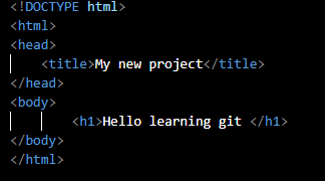
Basic HTML Structure
Explanation
The HTML document contains the basic structure including HTML, Head and Body tags.
Expected Output
A simple webpage is ready for version control.
Check Repository Status
Purpose
Check the current state of the repository.
Command
git status
Explanation
Displays whether files are untracked, modified or staged.
Expected Output
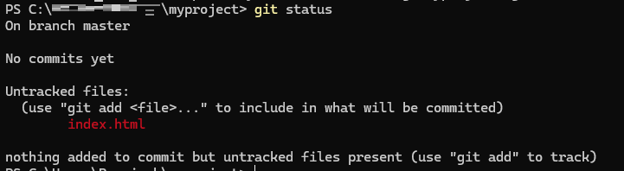
Shows index.html as an untracked file.
Output of git status
Purpose
Understand the output produced by Git.
Command
git status
Explanation
Review Git's message indicating that the file is currently untracked.
Expected Output
Git suggests using git add to start tracking the file.
Stage index.html
Purpose
Move the file into the staging area.Command
git add index.html
Explanation
Stages the selected file for the next commit.Expected Output
The file becomes ready to commit.Verify Staging
Purpose
Confirm that the file is staged.Command
git status
Explanation
Checks whether the file is ready for commit.Expected Output
Displays Changes to be committed.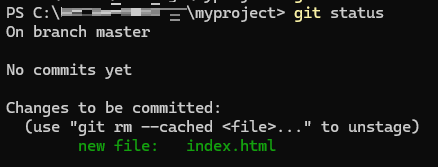
First Commit
Purpose
Save the first version of the project.Command
git commit -m "initial commit"
Explanation
Creates the first snapshot of the repository.Expected Output
A new commit is successfully created.
Commit Output
Purpose
Verify successful commit.Command
git commit -m "initial commit"
Explanation
Displays commit summary with commit ID and files changed.Expected Output
Commit completed successfully.
View Commit History
Purpose
Display repository history.Command
git log
Explanation
Shows complete commit details.Expected Output
List of commits with author, date and message.
Compact Commit History
Purpose
View commit history in short form.Command
git log --oneline
Explanation
Shows each commit in one line.Expected Output
Short list of commits.
Modify HTML File
Purpose
Demonstrate change tracking.Command
Edit index.html
Explanation
Add one new line in the HTML file.Expected Output
Git detects modification.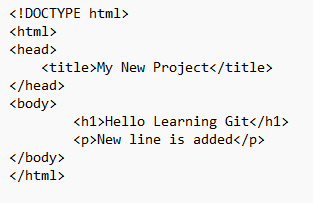
Check Modified Status
Purpose
Verify file modification.Command
git status
Explanation
Displays modified files.Expected Output
index.html appears as modified.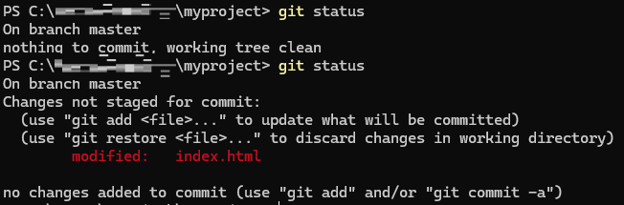
Stage All Files and commit
Purpose
Add all modified files.Command
git add .
Command
git commit -m "add new line"
Explanation
Stages every modified file in the project and commit the changes.Expected Output
All changes ready for commit and all the changes commit
Verify All Files are Staged
Purpose
Confirm staging.Command
git status
Explanation
Review staged files.Expected Output
Changes to be committed.Create Branch
Purpose
Create a separate development branch.Command
git branch new-module
Explanation
Creates a new branch named new-module.Expected Output
Branch successfully created.
Switch Branch
Purpose
Move to feature branch.Command
git switch new-module
Explanation
Changes the active branch.Expected Output
Terminal switches to new-module.
Verify Branch
Purpose
Confirm active branch.Command
git status
Explanation
Displays current branch name.Expected Output
On branch new-module.
Branch Status Output
Purpose
Review repository status.Command
git status
Explanation
Shows working tree status.Expected Output
Working tree clean.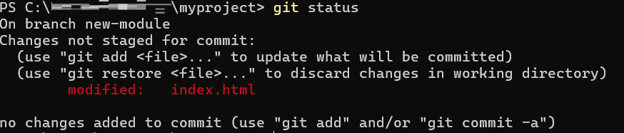
Commit Changes on Branch
Purpose
Save work in feature branch.Command
git commit -m "changes commit on branch"
Explanation
Creates a commit in new-module branch.Expected Output
Branch commit successful.
Switch Back to Master
Purpose
Return to the main branch.Command
git switch master
Explanation
Changes active branch back to master.Expected Output
On branch master.
Merge Branch
Purpose
Merge feature into master.Command
git merge new-module
Explanation
Combines branch changes with the master branch.Expected Output
Merge completed successfully.
Final Repository Status
Purpose
Verify merge completion.Command
git status
Explanation
Checks final repository state after merge.Expected Output
Working tree clean, nothing to commit.